


How it works
How to use the yatridisha app.
Join with an invite, tell the app how you like to travel, then find a trip and let our team arrange it — or plan it yourself. Here is every part, step by step, with the screen you will see.
Part 1 · Join and set up
Get in, and tell the app who you are.
yatridisha is an invite-only travel club, so you join through someone who is already a member. Setting up takes about three minutes.
-
Step 1
Get an invite
Ask a friend who already uses yatridisha for their invite code or link. Every member has one, under Settings › Invite Friends.
-
Step 2
Download the app
Install yatridisha from Google Play or the App Store and open it. Four short intro slides explain the idea — tap Skip if you want to move on.
-
Step 3
Share your location, or don’t
The app asks for your location so it can suggest places near you. Tap Continue to allow it, or Not now to skip. You can change this later in your phone settings.
-
Step 4
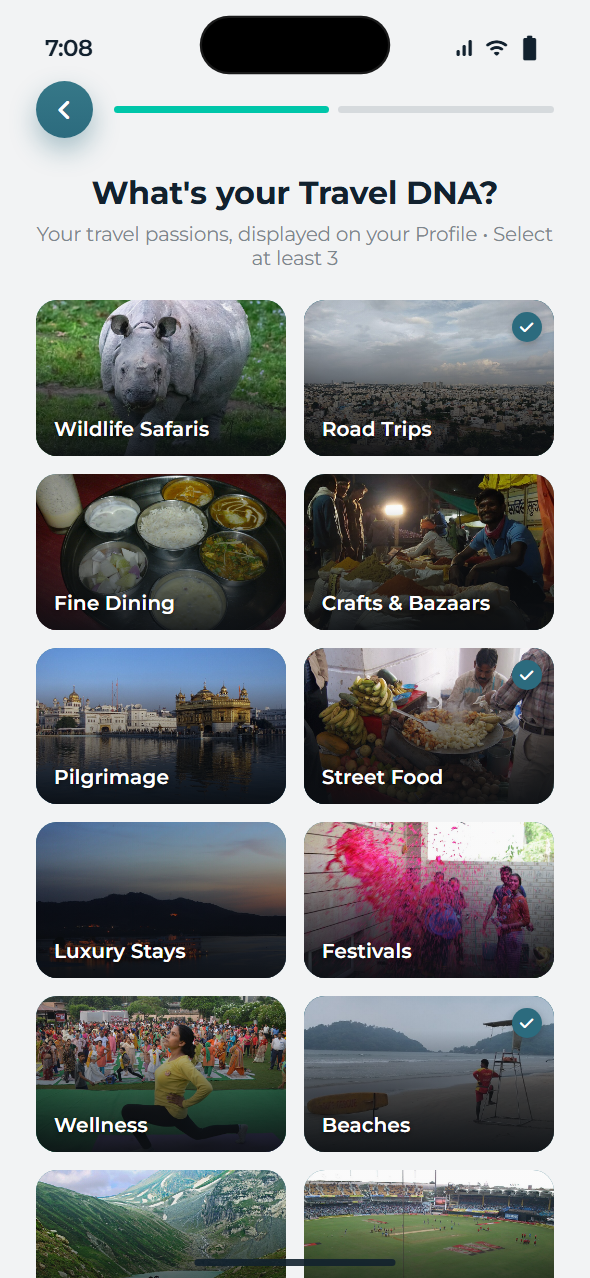
Pick your Travel DNA
Choose at least three things you love — wildlife safaris, street food, pilgrimage, road trips, beaches, trekking and more. These appear on your profile and shape what the app shows you.
-
Step 5
Mark the states you have visited
Tick every state and union territory you have already been to. They become the first stamps in your Passport. You can skip this and add them later.
-
Step 6
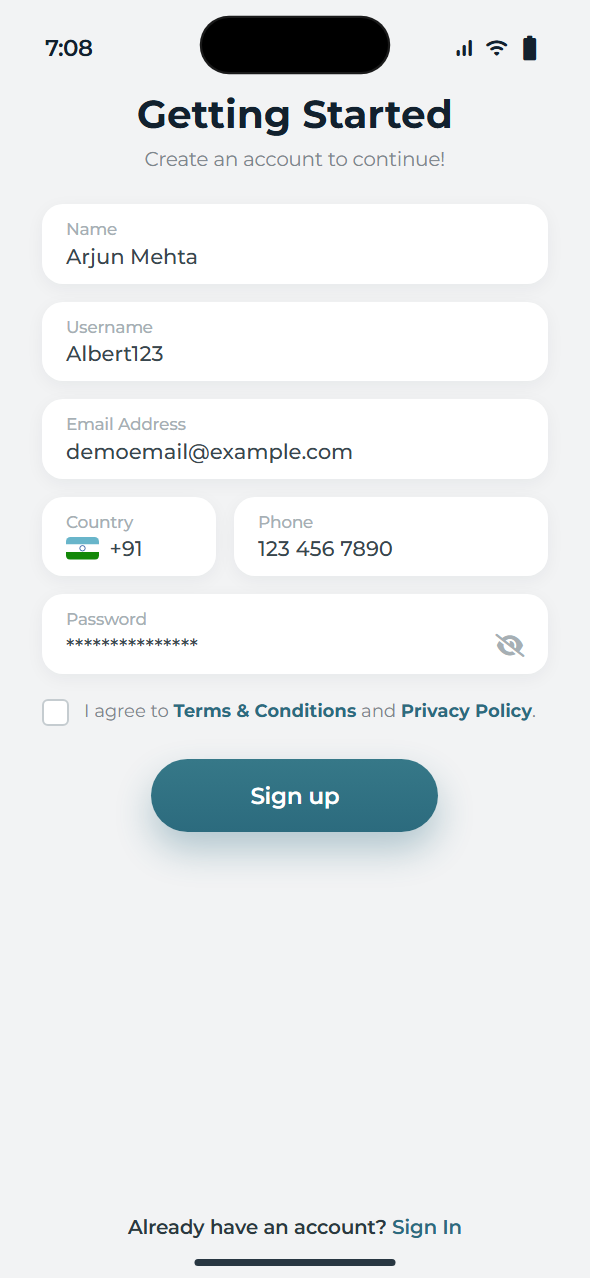
Create your account
Enter your name, a username, your email, phone number and a password, then accept the Terms and Privacy Policy and tap Sign up. You can also continue with Google or Apple.
-
Step 7
Verify your email
We send a 4-digit code to your email. Type it in and tap Verify Code. If it does not arrive, tap Resend Code when the timer runs out.
-
Step 8
You are in
You land on Home, with trending trips and stories chosen by the yatridisha team.
Good to know
- Signing in again. Open the app, enter your email and password and tap Sign in.
- Forgot your password? Tap Forgot Password on the sign-in screen. We email you a code, then you set a new password.
- Asked to update? If the app says “Please update the app before opening”, update it from your store and open it again.
Finding your way around
Five tabs at the bottom. That is the whole app.
Whichever screen you are on, these five are always one tap away.
Home
Search any location, see trending trips and read stories featured by the yatridisha team.
Memory
Photos, reels and reviews from the people you follow. Filter them by state.
Explore
Find places to stay, eat and visit, and see what your friends rated highest.
yatridisha
Your trips: Upcoming, Past, Wishlist, Saved and the Requests you sent to our team.
More
Your profile, Chat, Add Review and Upload Content, plus Settings.
The bell at the top of Home opens your notifications. Tap your photo beside it to open your profile.
Part 2 · Find places
Look around India before you decide.
You do not need a plan to start. Browse what is trending, see where your friends have been, and save anything that catches your eye.
-
Step 1
Search any location
Use the search bar on Home to look up a city, a state or a single place.
-
Step 2
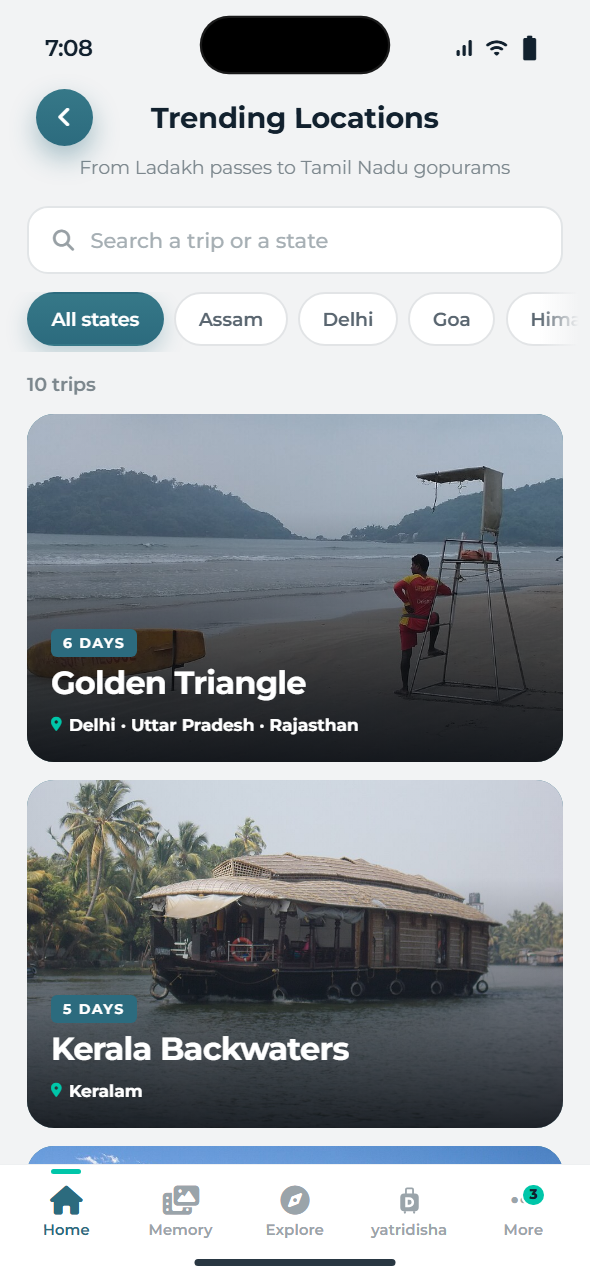
Open Trending Locations
Ready-made trips such as the Golden Triangle or the Kerala Backwaters, each showing how many days it takes. Use the chips at the top to filter by state.
-
Step 3
Open a trip to see inside
Read what the trip covers and the places on the route. Tell the app how many people are going — Solo, Couple, Family or Group — and tap Show me plans to see the options and their cost.
-
Step 4
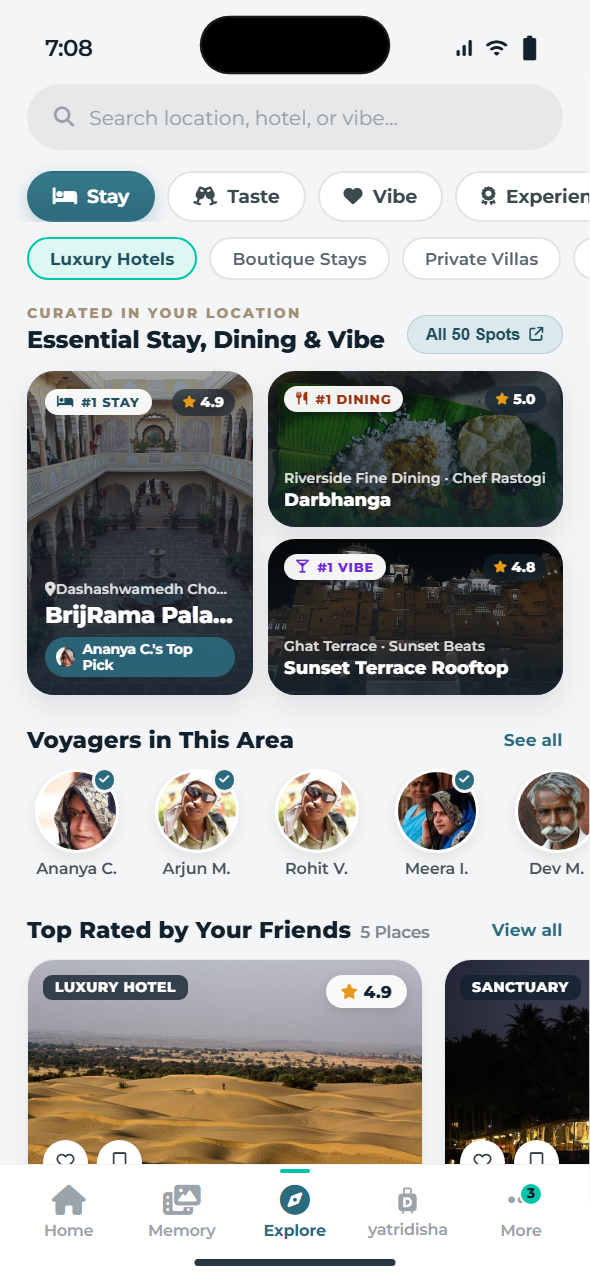
Use Explore for stays, food and things to do
Switch between Stay, Taste, Vibe and Experience. Each place shows its rating and which of your friends recommended it.
-
Step 5
Read Featured by yatridisha
Stories written by our own team: destinations, festivals, group trips, hotel openings and concierge picks.
-
Step 6
Save what you like
Tap the heart to add a place to your Wishlist, or the bookmark to keep a post. Find them again under the yatridisha tab and in Settings › Bookmark.
Good to know
- Voyagers in this area. Explore shows other members who are travelling near you. Tap one to open their profile.
- Like a ready-made trip? Pick a plan and tap Send to yatridisha. Our team checks availability and calls you back.
Part 3 · Plan a trip
Two ways to plan. Pick the one that suits you.
Open the yatridisha tab and tap Plan. You are asked one question first: do you want our team to plan it, or do you want to build it yourself?
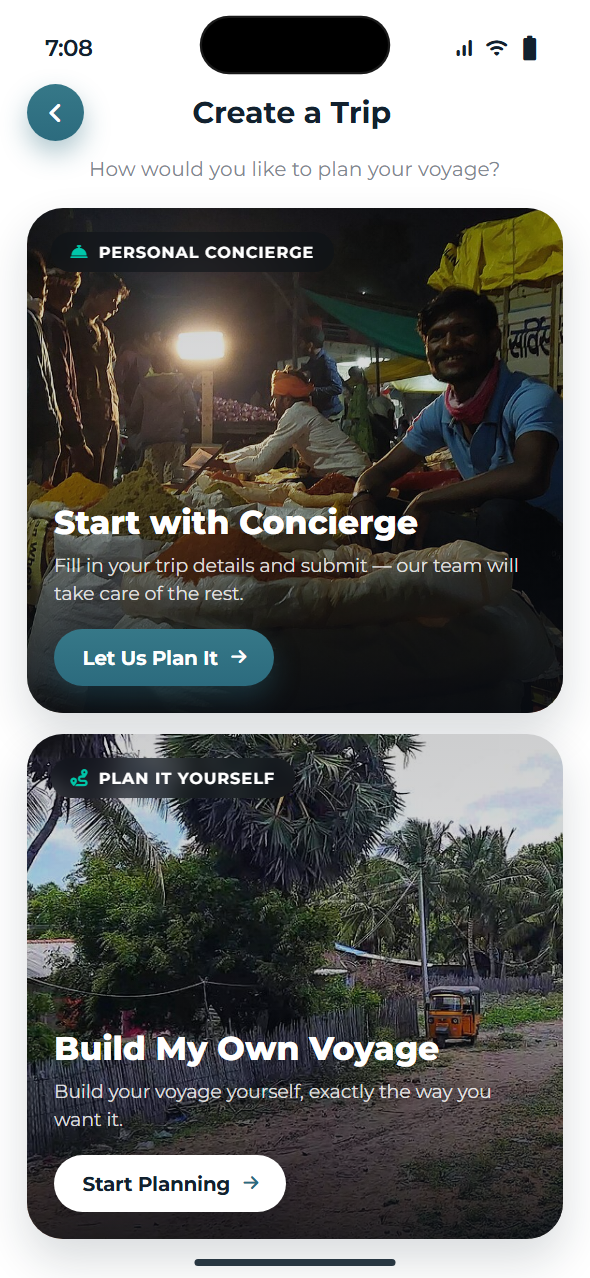
Let our team plan it
Best when you know roughly what you want and would like a person to work out the rest.
-
Step 1
Tap Let Us Plan It
A short form called Ask our team opens.
-
Step 2
Say where and when
Type any place in India or tap a suggestion. Choose this month, next month, later or exact dates, and how many days.
-
Step 3
Say who is going
Set the number of adults and children. Children are under 13.
-
Step 4
Give a budget, if you have one
Pick a range per person, or choose Not decided.
-
Step 5
Add anything we should know
Optional: veg food only, travelling with elders, need train or flight too, first time travel, honeymoon.
-
Step 6
Leave your phone number
Only our team sees it. Tap Send to our team.
-
Step 7
We call you back
A travel expert rings you to talk it through, then sends your options in the app.
Plan it yourself
Best when you want to see ready plans with prices straight away and adjust them.
-
Step 1
Tap Start Planning
Plan a trip opens with three easy questions.
-
Step 2
Where do you want to go?
Search a place or state, or tap one of the picture cards.
-
Step 3
How many days, and when?
Choose 3 to 4 days, 5 to 7, 8 or more, or Not decided, and roughly when.
-
Step 4
Who is going?
Solo, Couple, Family or Group. The price changes with group size, and children count too.
-
Step 5
Pick a ready plan
Tap Show me plans and choose the one you like. None fit? Tap “Tell our team what you want”.
-
Step 6
Check your trip
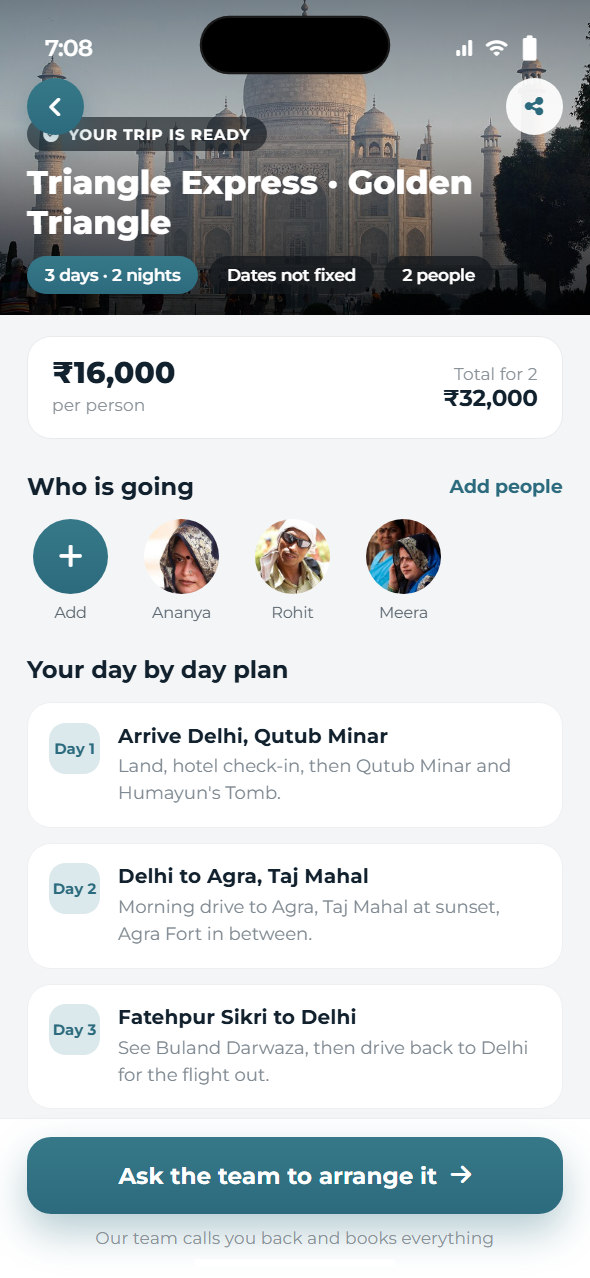
You see the cost per person and the total, who is going, and the plan for each day. Add people or add a place if you want.
-
Step 7
Ask the team to arrange it
Tap the button, tick any notes such as “Can change dates”, and tap Send. We call you back and book everything.
After you send it
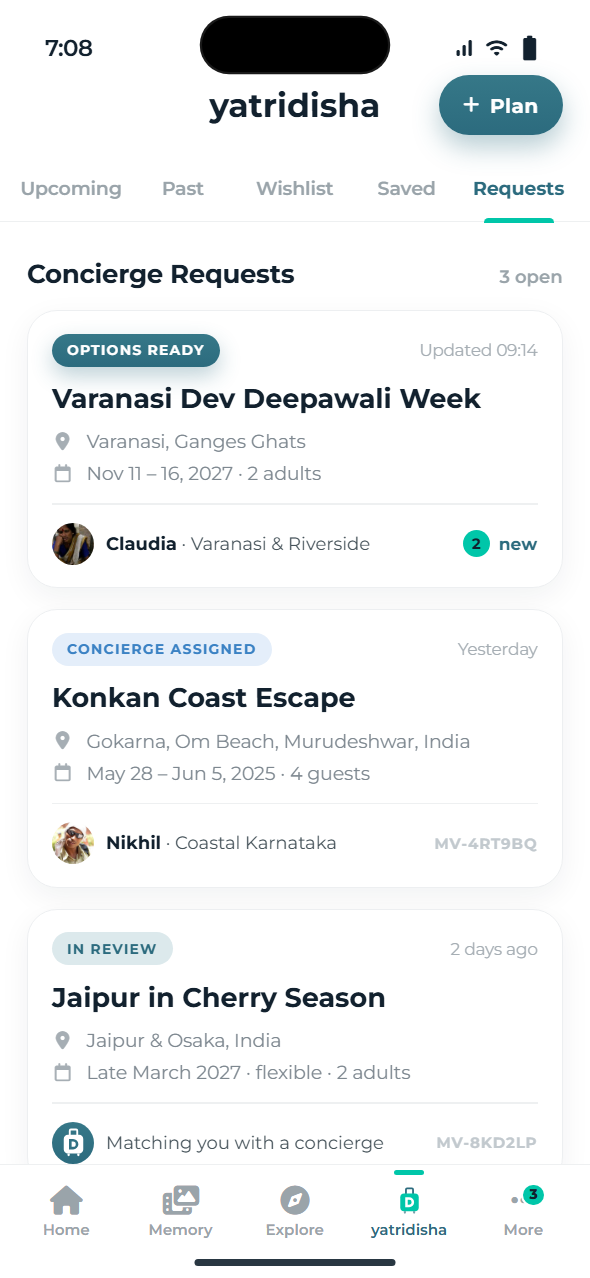
Every request you send sits under yatridisha › Requests, with a label that tells you where it has reached.
- 1
In review
We have your request and are matching you with a travel expert.
- 2
Concierge assigned
A named expert now owns your trip. A group chat opens with them.
- 3
Options ready
Your expert has sent choices for you to look at and discuss.
- 4
Confirmed
Everything is agreed. The trip moves to your Upcoming tab.
Nothing is booked the moment you tap Send. Our team always calls you first to confirm dates and price.
Part 4 · Travel and share
On the road, and when you are back.
Your trip, your expert and the people travelling with you stay in one place while you travel. Afterwards, what you share helps the next traveller.
While you travel
-
Step 1
Open your trip
It is under yatridisha › Upcoming, with a countdown to the day you leave. Tap it for the day-by-day plan.
-
Step 2
Chat with your expert
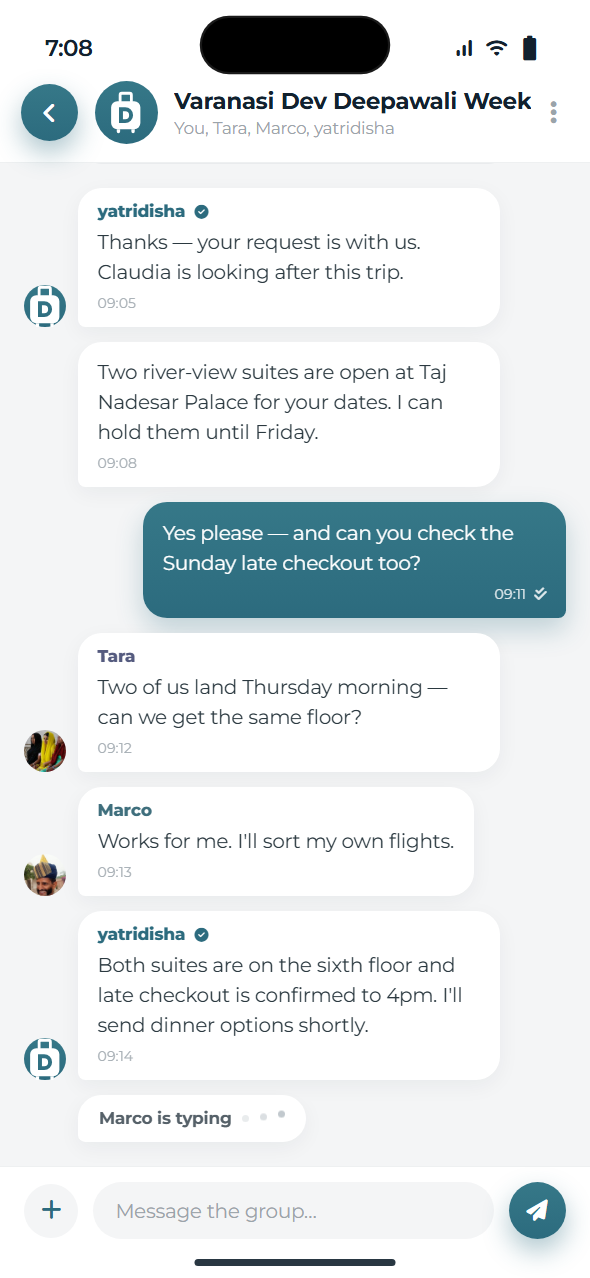
Each trip has its own group chat with your travel expert and everyone going. Ask for a change, a late checkout or a dinner booking.
-
Step 3
Follow the map
The Map shows each day’s stops in order and the total distance. Tap View Tracking to follow the route as you go.
When you are back
-
Step 4
Post your photos and reels
Open More › Upload Content. Choose Post or Reel, add photos or a video, set the location and pick a Voyage Mood, then tap Post.
-
Step 5
Recommend a place
Open More › Add Review. Search the place, add photos, give a star rating, say why you recommend it, and mark it as Stay, Taste, Vibe or Experience.
-
Step 6
Watch your Passport fill up
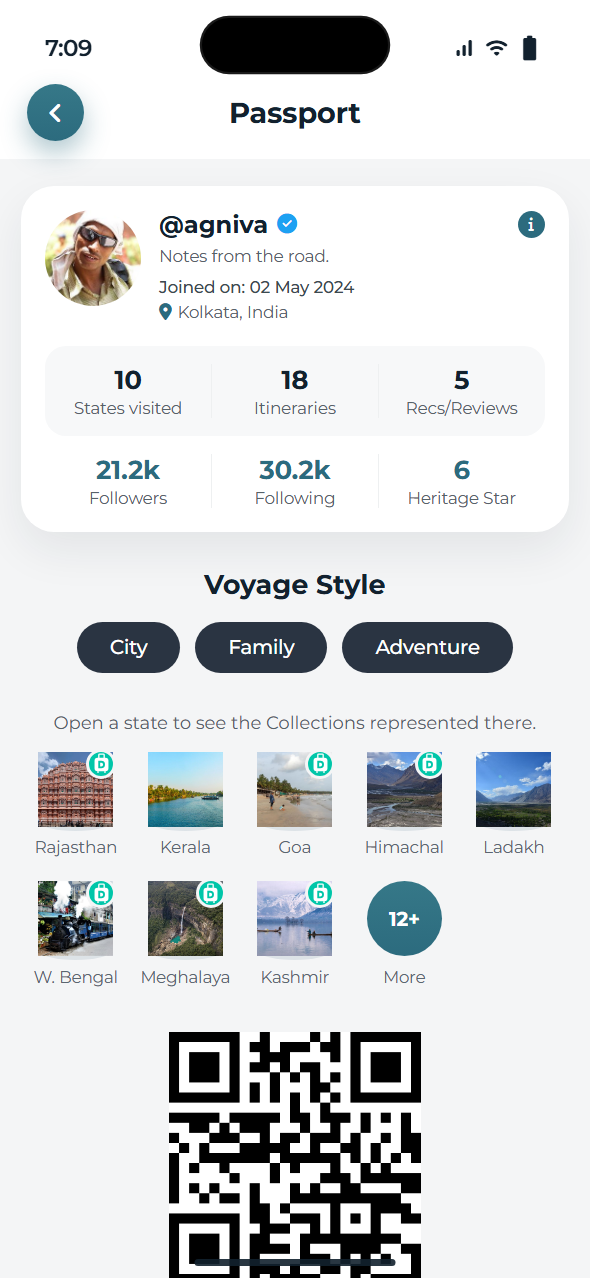
Each state you visit is stamped on your Passport, with your itineraries, reviews and followers. Show its QR code to share it.
-
Step 7
Bring your friends in
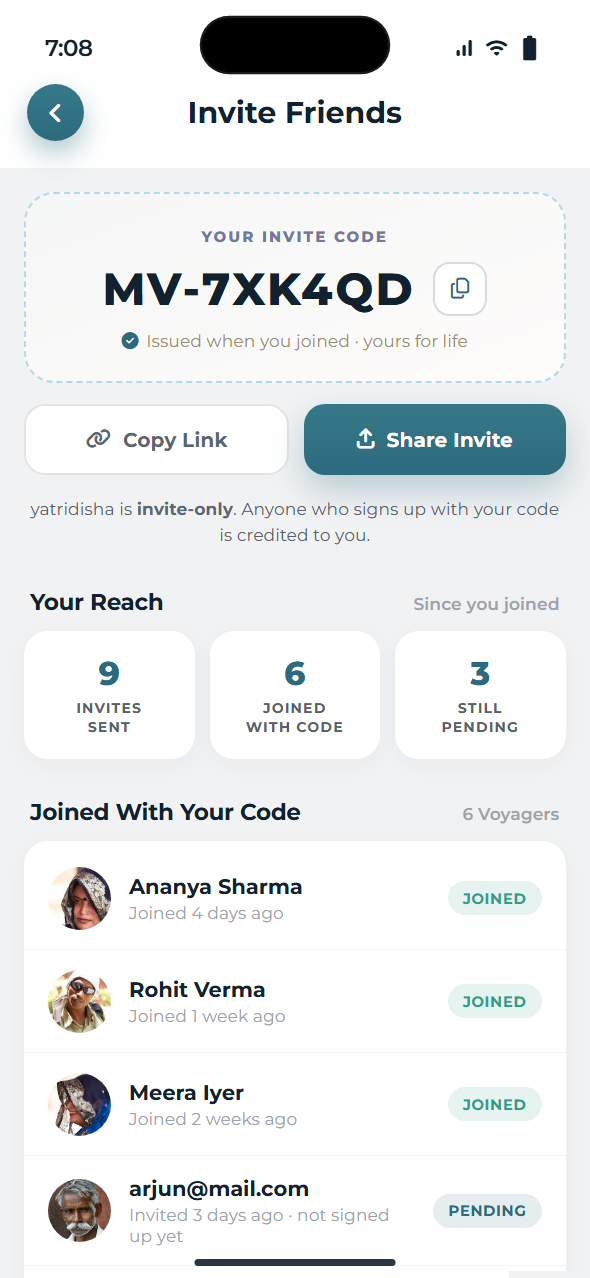
Open Settings › Invite Friends and share your code. You can see who has joined with it and who is still pending.
Good to know
- Heritage Star. When you review a place you can mark it as a Heritage Star. Your starred places are counted on your profile.
- Collections. Your posts and reviews are grouped by passion, such as Heritage or Rooftops, as well as by state.
- Message requests. Messages from people you do not follow wait under Chat › Request until you accept them.
Your account
Settings, privacy and help.
Open your Profile and tap Settings. Everything about your account is in this one list.
Profile Update
Change your photo, name, bio and Travel DNA.
Profile Visibility
Choose Public or Private, then tap Apply.
Notification
See everything the app has told you, and clear it.
Bookmark
Places and posts you saved, sorted by state.
Transaction History
Your trips with their dates, amounts and status.
Support
Our phone, email and address, and a form to message us.
Logout
Sign out on this phone. Your account stays as it is.
Delete Account
Removes your account for good. The app asks you to confirm first.
Ready when you are
Get the app and start with step one.
Still unsure about something? Ask us. A travel expert replies within one working day.